
to adjust the volumes in Windows:
(bear in mind that pretty much ALL audio and video apps in Windows actually set their levels via the built-in audio controls below. Mac OSX is following suit.)
1. The basic audio controls usually show up on the bottom right tool bar of the desktop:
2. left-click on it and you get this:
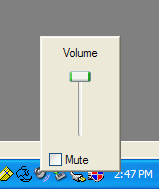
however, that will only raise the volume to the maximum level that you've allowed it to go based on the controls below. To gain more control over the audio, you have to adjust the properties by right-clicking the speaker icon:

3. Be selecting the bottom choice, you get the audio properties box:
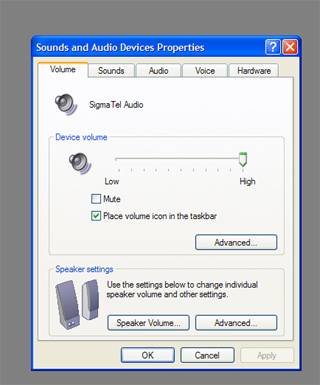
Currently it's set to the Volume tab. This gives you another set of controls for your cpu speakers, general volume, etc. Hit the audio tab and you get:
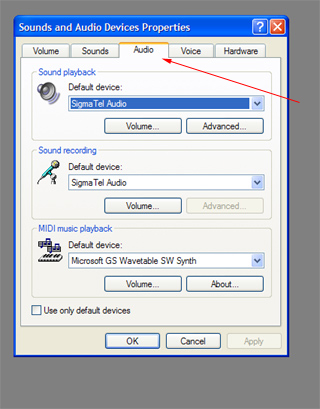
from here you get the most specific controls for adjusting both recording volume and playback volume. If you have multiple devices or drivers on your machine, you might have to go here to select the right one from the list.
4. By clicking on the volume buttons for recording and playback, you get these:
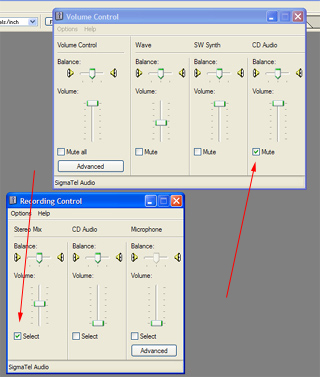
which allow you to set relative levels for individual audio devices. If your input is very noisy while you're trying to take a line input into the computer, try muting each of the outputs, odds are that one of them is being fed back into the record loop. You're only allowed to select one record input at a time, but if you want to record from whatever is currently playing in the computer (a website, for instance), pick 'Stereo Mix'. Audacity is great for that, btw.